Setting Up Preview Functionality
As part of setting up your ecommerce web site, you should have the preview displayed on product page. There are several different ways to do so, depending on the type of asset. DAM provides a 1st-page preview image for sheets, a preview version for interactive assets, and a preview clip for audio assets or video assets. Note that this is for previewing assets only (prior to purchase). The DAM system will verify that you have permission to access the asset id in the URL before displaying it. If your vendor account does not have permission to the asset an error page will be displayed.
Sheet Music
Accessing the Interactive Viewer is as simple as embedding an iframe URL in your web page. Once you embed the iframe, either an interactive preview or a PDF preview,
depending on rendering type for that asset. The iframe preview is set up with your vendor ID and the ID of the asset you wish to preview in the iframe src parameter.
    <iframe src="//haldms.halleonard.com/musescore/preview/{vendor ID}/{asset ID}"
        ... allowfullscreen="true" loading="lazy">

    </iframe>

You must specify the allowfullscreen="true" parameter on the iframe tag for "full screen" functionality to work correctly.
Specifying loading="lazy" will also improve loading times for interactive previews.
Putting a preconnect link inside the <head> tag will help save in loading time and is highly recommended
`<head>
   <link rel="preconnect" href="https://haldms.halleonard.com">
</head>
You can tell what type of asset is available for purchase <Renderings> element in the AssetMetadata response.
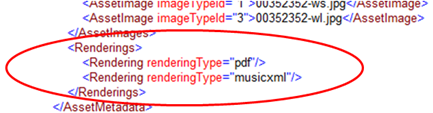
This will tell you what type of renderings are available for the given asset. It is recommended you display if the item is interactive or not to the customer.
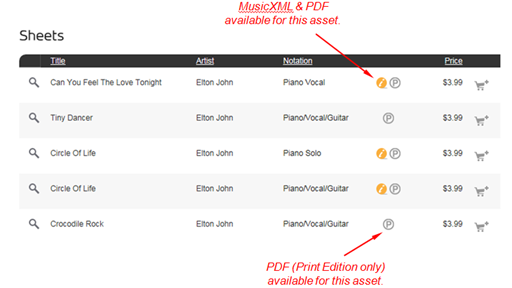
If you only wish to show the non-interactive preview, it is stored in Asset Image with imageTypeId="4".
<img src="{image type path}{asset image}" .../>
Audio Files
The preview clips for audio assets are included in the FileUrl tag in Asset Metadata and do not expire. They can be embedded
directly in your page via an <audio> tag.
<audio src="{file URL}" type="audio/mpeg" ...> </audio>
Related Items
If an asset has RelatedGoods it is helpful to link the to the product pages of those items on a given items. Doing so will help you users find
things like the audio accompaniment for Choral works.
Cover Images
There are cover images available for that can be added to the product page. These are stored in it is stored in Asset Image with imageTypeId that is not 4.
The links to these images do not expire.
<img src="{image type path}{asset image}" .../>