Digital Retailer Vendor Administration
The Digital Retailer Vendor Administration system is located at https://haldms.halleonard.com/vendoradmin/
and login will your Vendor ID for Acount ID and Vendor Key for Password
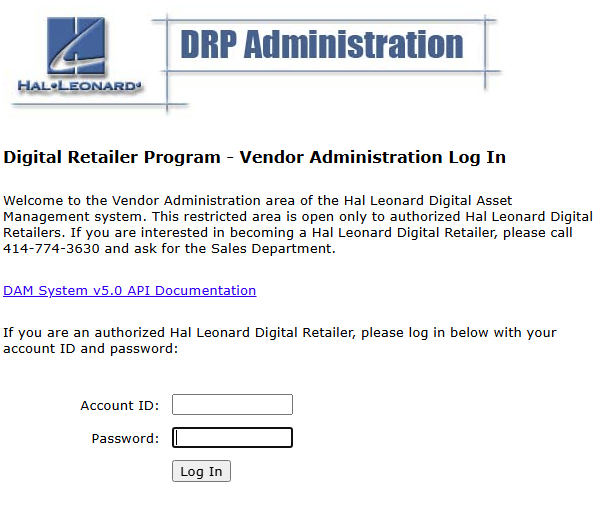
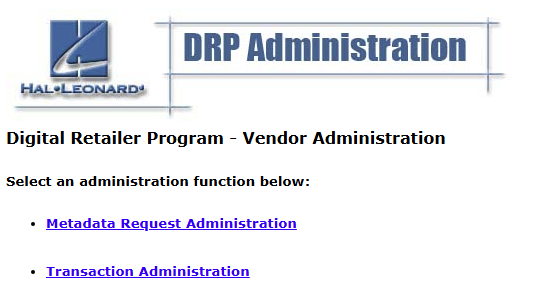
Once logged on to the system, Digital Retailers may request asset metadata, or manage specific transactions related to digital asset sales, for example to retry or cancel a sales transaction
DAM System Metadata
Digital asset metadata from Hal Leonard's Digital Asset Management (DAM) system is provided through a related
set of denormalized files. These files will help you keep your systems in sync with the latest information in Hal
Leonard's DAM system. You can request all assets updated within a date range or a list of Asset IDs, either on the page or uploaded via file.
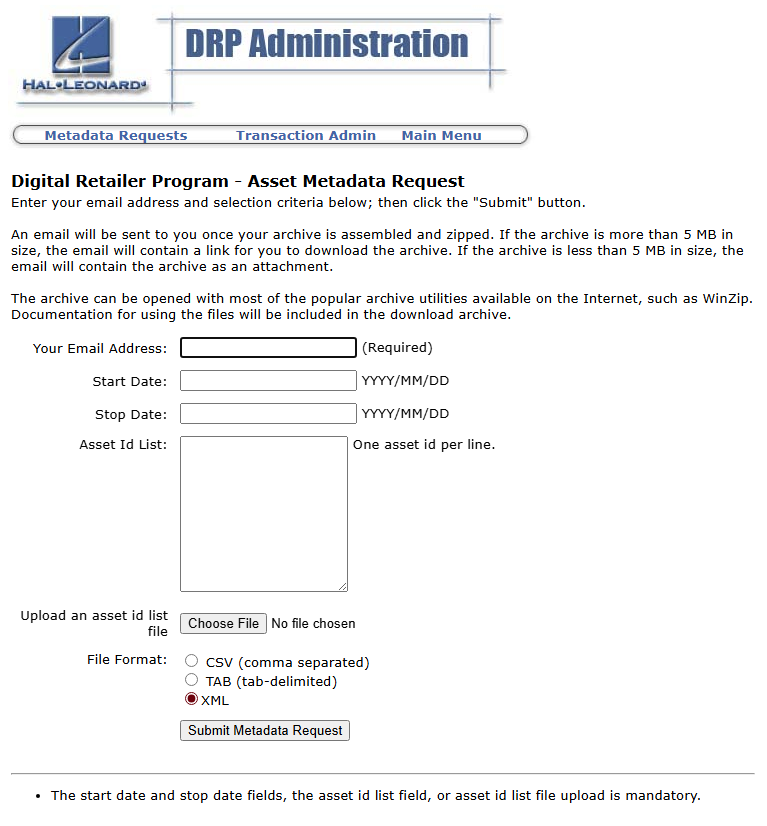
Enter you Your email address and the desired file format, along with the selection criteria and click the "submit" button.
An email will be sent to you once your archive is assembled and zipped. If the archive is more than 5 MB in size, the email will contain a link for you to
download the archive. If the archive is less than 5 MB in size, the email will contain the archive as an attachment.
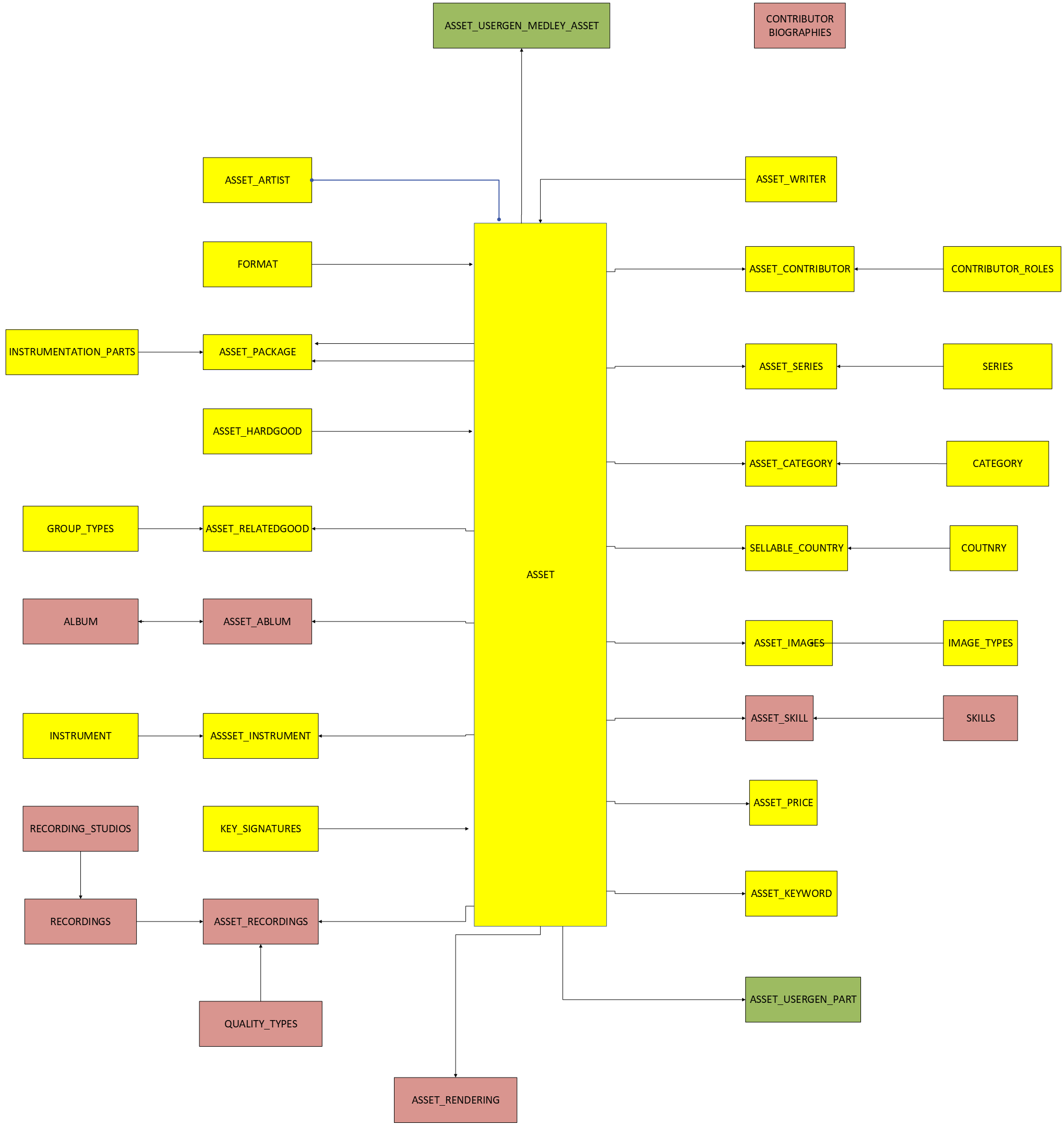
The files are available in a CSV (comma-separated), TAB (tab-delimited), or XML format, depending on how you requested them, and can be filtered using your favorite desktop software, such as Excel or Microsoft Access, prior to loading it into your internal database management system. The data conforms to the following conceptual data model. Not all data is provided to all vendors. Data entities noted in red below are only provided to vendors with access to Hal Leonard's recording assets. Data entities noted in green below are only provided to vendors with access to Hal Leonard's UserGen assets. See Data Map for a more detailed explanation
Transaction Administration
The Transaction Administration interface allows you to reset print requests (known as a "retry"), or cancel digital sales transactions. You would typically use this interface in response to a customer inquiry regarding the sale of a digital sheet from your web site, for example because the customer's printer ran out of ink, or the song sheet wasn't exactly what they wanted, etc.
Please note that this interface only affects transactional data in the DAM system database. It is your responsibility to maintain any associated information in your local database, along with issuing any needed refunds through your credit card processor.
To access your specific transactions, enter a DAM transaction ID (or range), a transaction date (or range), one of your order numbers, a specific DAM asset ID, or a status (from the pull-down list) and click the "Search" button.
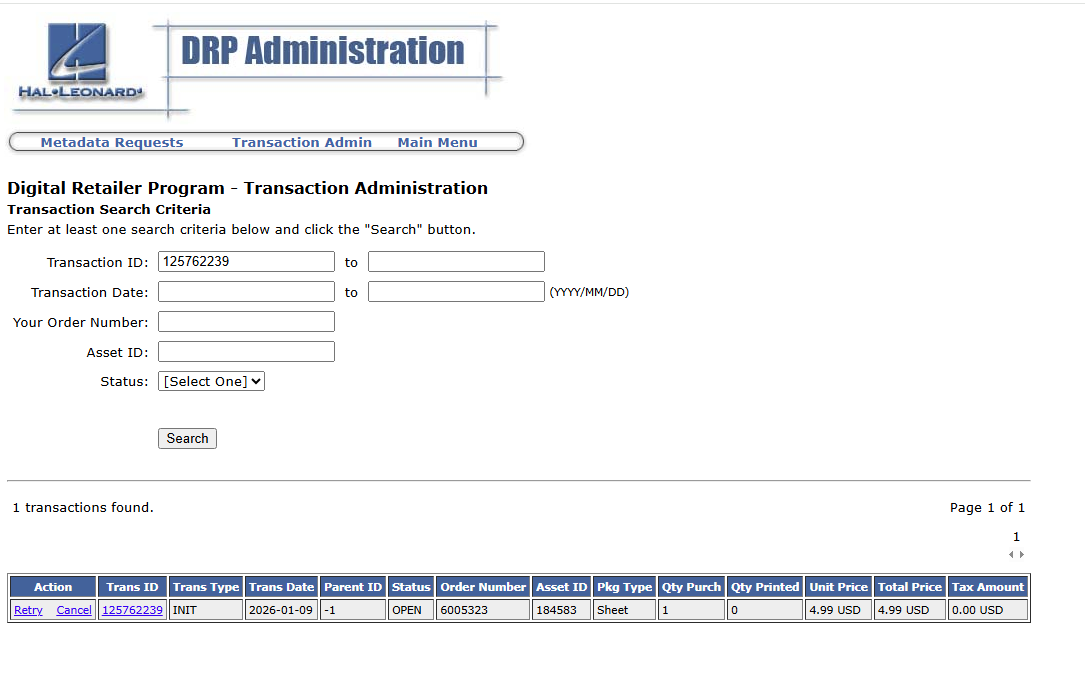
Transactions matching your search criteria will be displayed at the bottom of the screen. In the example above, the customer purchased one "print" of asset 184583 on 2026/01/09. The status is "OPEN", meaning that the customer has not printed their purchase. If the status was "Complete" the customer has printed their purchase. Left unchanged, this sale would be billed to your vendor account on Hal Leonard's next digital sales invoice cycle.
Retry Transactions
If your customer contacts you and requests another "print" because of a printer malfunction, user error, etc., you can
give them another "try" by clicking on the "Retry" link associated with the transaction in the search results. Doing
so displays the "Transaction Retry Request" screen. Note that if you are using either the Noteflight or Musescore viewer
you will need to use the TransactionRetryRequestto get new "view" and "download" URLs, as they are short lived
and expire after only a few minutes, rather than using the Vendor Admin.
-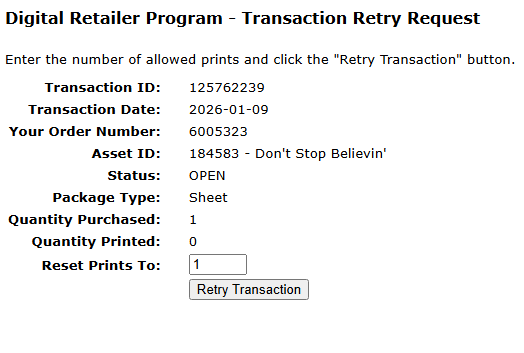
From here, you can reset the number of prints by entering the appropriate value and clicking the "Retry Transaction" button. You may reset the number of "prints" to any value up to, but not exceeding, the quantity originally purchased.
Upon successful completion of your "retry" request, the system will display the new transaction ID associated with the purchase. You must use this new transaction ID in the page that displays the asset to your customer. The original transaction can no longer be used.
Please note that your vendor account is not billed for "retry" transactions; however, the DAM system will report any excessive use of the "retry" functionality.
Cancel Transactions
If you need to cancel a transaction because of customer dissatisfaction, purchasing error, etc. you can do so by clicking on the "Cancel" link associated with the transaction in the search results. Doing so displays the "Cancel Transaction Request" screen.
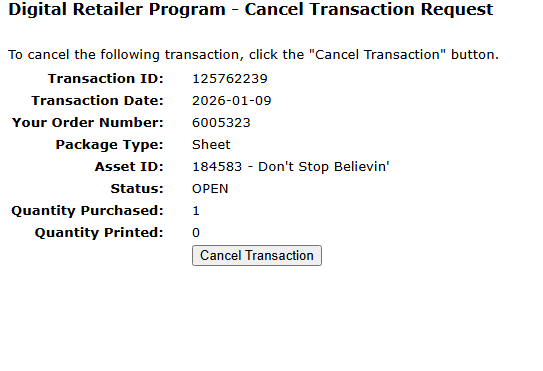
From here, click the "Cancel Transaction" button to cancel the sales transaction. This functions the same way as a
TransactionCancelRequest Note that this only affects the
transaction data in the DAM System database. It is your responsibility to update your local database and
issue any needed refund through your credit card processor.
If you have already been billed for a transaction that you cancel, a credit will be issued on a future billing invoice. Again, like with "retry" transactions, excessive use of the "cancel" functionality is monitored by the DAM System.